“Kernel
compilation is a tough nut to crack” - Most frequently this would be followed by
a sigh if the recompiled kernel is not booting up. Though the nut has the look
of a tough one to crack, kernel recompilation is still an inescapable affair
that every Linux system administrator runs into, sooner or later. I too had to.
With this article, I intend to walk you through the phases of compiling a
kernel. I am sure it will inspire confidence in you so that compiling a kernel
is no longer a “mission impossible”.
What
is a kernel?
Keeping
it simple, kernel is the central part of most of the operating systems. The main
functions of kernel include process management,resource management etc. It is
the first part of operating system that is loaded in to the RAM when the machine
is booted and it will remain in the main memory. Since the kernel stays in the
main memory, it is important that it should be as small as possible.
In
Linux, kernel is a single file called vmlinuz which
is stored in the folder /boot, where vm represents
virtual memory and z at
the end of the filename denotes that it is compressed.
When
do we recompile a kernel?
To
reduce the size of the kernel:
Suppose
you are a Linux fanatic and you need an OS in your mobile. The typical OS you
get has the all the miscellaneous components and has size in many MB s, which
you can’t afford in your mobile. If I were you, I would do a kernel
recompilation, and remove unwanted modules.
When
the size of the kernel is reduced removing the unwanted items, less memory will
be used which in turn will increase the resource available to
applications.
To
add or remove support for devices:
For
each device, a device driver is needed for communicating with the operating
system. For example, if a USB device is attached to a computer, we need to
enable the corresponding device driver for it to work. In technical terms, the
support for USB driver is to be enabled in the kernel.
To
modify system parameters:
System
parameters include high memory support, quota support etc. For managing physical
memory above 4 GB, high memory support (64 GB) needs to be enabled.
How
do we recompile a kernel?
- Verify
and update the packages required
- Obtain
kernel source
- Obtain
current hardware details
- Configure
kernel
- Build
kernel
- Configure
the Boot loader
- Reboot
the server
1.
Verify and update the packages required
You
need to do this step only if you upgrade the kernel from version 2.4 to 2.6. You
can skip this step if it is a 2.6.x to 2.6.x upgrade.
Before
upgrading the kernel, you need to make sure that your system is capable of
accepting the new kernel. Check the utilities that interact with your system,
and verify that they are up-to-date. If they are not, go ahead and upgrade them
first.
The
main packages to be checked and upgraded are : binutils, e2fsprogs, procps, gcc
and module-init-tools
You
should take extreme care while upgrading module-init-tools.
A module is a piece of code that can be inserted into the kernel on demand.
Module-init-tools provide utilities for managing Linux kernel modules - for
loading, unloading,listing and removing modules.
The
main utilities available are :
- insmod
- rmmod
- modprobe
- depmod
- lsmod
Both
modprobe and insmod are used to insert modules. The only difference is that
insmod doesn’t know the location of the module and is unaware of dependencies.
Modprobe does this by parsing the file /lib/modules//modules.dep
How
to install module-init-tools
tar -zxf module-init-tools-3.2.2.tar.gz
2.
Configure it.
cd module-init-tools-3.2.2
./configure --prefix=/
3.
Rename the existing 2.4 version of this utility as utility.old
make moveold
4.
Build and install.
make
make install
5.
Run the script generate-modprobe.conf to convert the entries in the module
configuration file for kernel version 2.4 ( /etc/modules.conf ) to a file used
by kernel version 2.6 (/etc/modprobe.conf)
./generate-modprobe.conf /etc/modprobe.conf
6.
Check the version of current module-init-tools
depmod -V
2.
Obtain the Kernel Source
You
can download the source to the /usr/src/kernels folder
in your server. If you are planning to recompile your kernel to version
2.6.19.2, the steps would be :
[root]#cd /usr/src/kernels
[root]#wget http://www.kernel.org/pub/linux/kernel/v2.6/linux-2.6.19.2.tar.gz
[root]#tar zxf linux-2.6.19.2.tar.gz
[root]#cd linux-2.6.19.2
3.
Obtain the Current Hardware Details
The
current Hardware details can be obtained using the following commands:
lspci
This
utility gives the details about the network card and all devices attached to the
machine. If you type lspci and
get an error “lscpi: command not found”, you will have to install pciutils-2.1.99.test8-3.4
rpm in the server.
A
typical lspci output
will be as follows :
[root@XXXXX ~]# lspci
00:01.0 PCI bridge: Broadcom BCM5785 [HT1000] PCI/PCI-X Bridge
00:02.0 Host bridge: Broadcom BCM5785 [HT1000] Legacy South Bridge
00:02.1 IDE interface: Broadcom BCM5785 [HT1000] IDE
00:02.2 ISA bridge: Broadcom BCM5785 [HT1000] LPC
00:03.0 USB Controller: Broadcom BCM5785 [HT1000] USB (rev 01)
00:03.1 USB Controller: Broadcom BCM5785 [HT1000] USB (rev 01)
00:03.2 USB Controller: Broadcom BCM5785 [HT1000] USB (rev 01)
00:05.0 VGA compatible controller: ATI Technologies Inc Rage XL (rev 27)
00:18.0 Host bridge: Advanced Micro Devices [AMD]
K8 [Athlon64/Opteron] HyperTransport Technology Configuration
00:18.1 Host bridge: Advanced Micro Devices [AMD]
K8 [Athlon64/Opteron] Address Map
00:18.2 Host bridge: Advanced Micro Devices [AMD]
K8 [Athlon64/Opteron] DRAM Controller
00:18.3 Host bridge: Advanced Micro Devices [AMD]
K8 [Athlon64/Opteron] Miscellaneous Control
01:0d.0 PCI bridge: Broadcom BCM5785 [HT1000]
PCI/PCI-X Bridge (rev b2)
01:0e.0 RAID bus controller: Broadcom BCM5785 [HT1000]
SATA (Native SATA Mode)
02:03.0 Ethernet controller: Broadcom Corporation
NetXtreme BCM5704 Gigabit Ethernet (rev 10)
02:03.1 Ethernet controller: Broadcom Corporation
NetXtreme BCM5704 Gigabit Ethernet (rev 10)
[root@XXXXX ~]#
cat
/proc/cpuinfo
The
processor details can be obtained from the file /proc/cpuinfo
[root@XXXX ~]# cat /proc/cpuinfo
processor : 0
vendor_id : AuthenticAMD
cpu family : 15
model : 35
model name : Dual Core AMD Opteron(tm) Processor 170
stepping : 2
cpu MHz : 1996.107
cache size : 1024 KB
physical id : 0
siblings : 2
core id : 0
cpu cores : 2
fdiv_bug : no
hlt_bug : no
f00f_bug : no
coma_bug : no
fpu : yes
fpu_exception : yes
cpuid level : 1
wp : yes
flags : fpu vme de pse tsc msr pae mce cx8 apic sep mtrr pge mca
cmov pat pse36 clflush mmx fxsr sse sse2 ht pni syscall nx mmxext fxsr_opt
lm 3dnowext 3dnow pni
bogomips : 3992.34
[root@XXXXX ~]#
modinfo
Another
useful tool to obtain hardware information is modinfo.
It gives detailed description about modules. Before using modinfo, you may need
to find out currently loaded modules. lsmod is
the utility that lists currently loaded modules.
[root@XXXXXX ~]# lsmod
libata 105757 1 sata_svw
[root@ XXXXXX~]#
lsmod displays
a module sata_svw and more details of this module can be obtained as shown
below.
[root@XXXXX ~]# modinfo sata_svw
filename: /lib/modules/2.6.9-55.ELsmp/kernel/drivers/ata/sata_svw.ko
author: Benjamin Herrenschmidt
description: low-level driver for K2 SATA controller
license: GPL
version: 2.0 9FF8518CB6CD3CB4AE61E35
vermagic: 2.6.9-55.ELsmp SMP 686 REGPARM 4KSTACKS gcc-3.4
depends: libata
alias: pci:v00001166d00000240sv*sd*bc*sc*i*
alias: pci:v00001166d00000241sv*sd*bc*sc*i*
alias: pci:v00001166d00000242sv*sd*bc*sc*i*
alias: pci:v00001166d0000024Asv*sd*bc*sc*i*
alias: pci:v00001166d0000024Bsv*sd*bc*sc*i*
[root@xxxxxx~]#
4.
Configure the Kernel
Once
you have the source, the next step is to configure the kernel.
You
can configure the kernel using any of the following :
- make
config - This is a text based command line interface that will ask each and
every configuration question in order.
- make
xconfig - This is a graphical editor that requires x to be installed in the
system. Hence it is not used in servers.
- make
oldconfig - A text based interface that takes an existing configuration file and
queries for any variable not enabled in that configuration file.
- make
menuconfig - A text based menu configurator based on cursor-control libraries.
This is the most commonly used method for configuring kernels in servers.
If
you are a newbie, I would recommend using the existing configuration and
use make
menuconfig to configure the kernel.
Steps
for configuring your kernel are :
Step
1: Copy the current kernel configuration to your new kernel source.
[root@XXXXX ~]#pwd
/usr/src/kernels/linux-2.6.19.2
[root@XXXXX ~]#cp /boot/config- .config
[root@XXXXX ~]#make oldconfig
where
should be replaced with the existing kernel version in
the server. You can get in the server using the command
:
[root@XXXXX ~]# uname -r
2.6.9-67.ELsmp2.6.9-67.ELsmp
[root@XXXXX ~]#
When make
oldconfig prompts for values, retain the old values.Even if you retain the
old values, don’t forget to check the hardware of the server as well as the
processor type and the model of the ethernet card. Since options change with
newer kernel versions, and some options may not be there in the old .config
files, it is advisable to double check all the options using menuconfig.
Step
2: make menuconfig.
[root@XXXXX ~]#make menuconfig
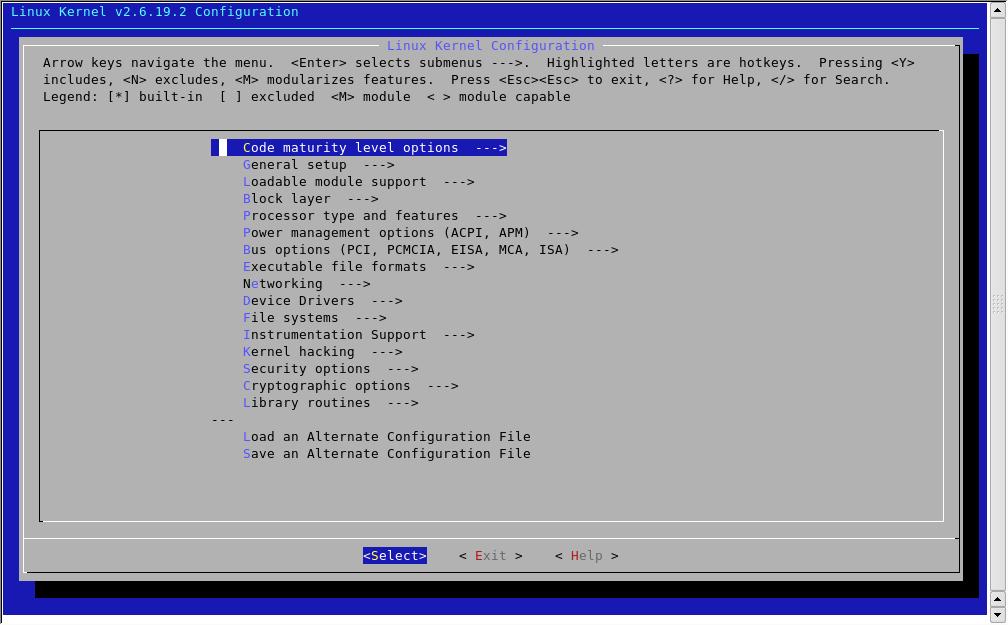
This
is the main screen of menuconfig. Only some options can be compiled as modules.
In menuconfig, they are marked < >. Press M to compile as a module. A [*]
means compiled in, M means module.

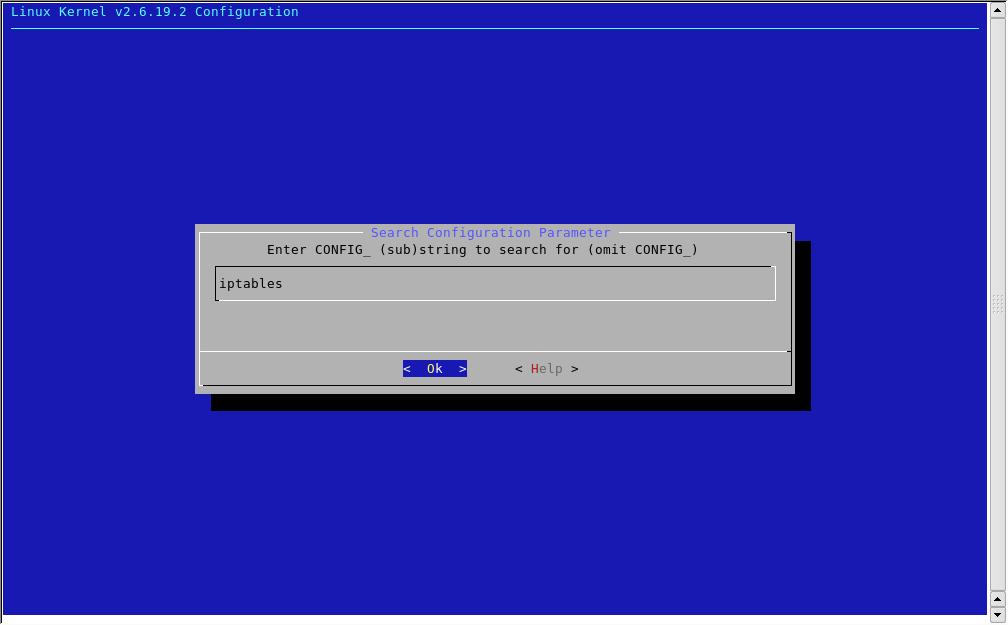
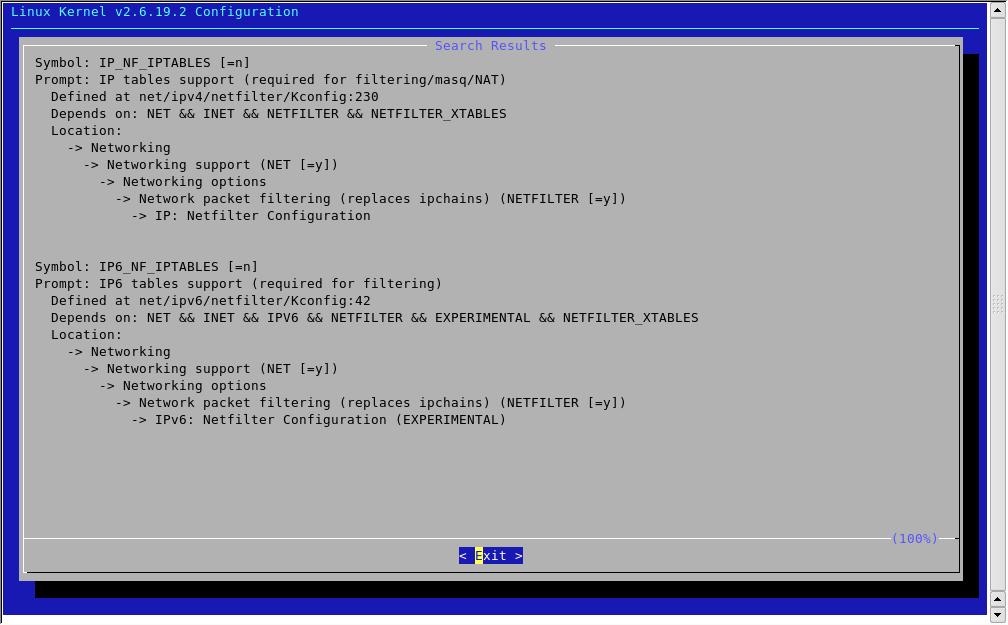
Menuconfig offers search
feature. Use “/” to search for any module. For eg: if you are not sure of the
location of the module
iptables, press
“/” , enter the search pattern as “iptables” and press enter.
As
there are a lot of options in menuconfig, I will just mention the important
ones. The essential options needed for a kernel to be running is processor, file
system, network card and hard disk. You can select the desired processor, file
system, hard disk and network card from the options available in
menuconfig.
Processor
type and features
Subarchitecture
Type : Select Generic architecture (Summit,bigsmp, ES7000, default)
Processor
family : Select the matching processor from the available list. For eg : If the
model name is Dual Core AMD Opteron(tm) Processor 170 , you can select
Opteron/Athlon64/Hammer/K8 from the options available.
For
a multiprocessor server, enable the options Symmetric multi-processing support
and SMT (Hyper threading) scheduler support.
For
RAM > 4 GB enable the option High Memory Support (64GB) . And the final
output of the option Processor
type and features would look like this :
Networking
Iptables
is enabled in this option.
Location:
 -> Networking
   -> Networking support (NET [=y])
     -> Networking options
       -> Network packet filtering (replaces ipchains) (NETFILTER [=y])
         -> Core Netfilter Configuration and IP: Netfilter Configuration
All
the modules under the option Core Netfilter Configuration and IP: Netfilter
Configuration should be enabled as modules.
Device
Drivers
This
is the most confusing part. In this, the main options you need to check are
:
1.
Block devices : Enable RAM disk support and Loop back device support
Include Loopback device support (module)
RAM disk support [*} compiled in
Leave the default values of RAM disk number and size.
Initial RAM disk (initrd) support [*} compiled in
2.
SCSI device support : Enable corresponding model in SCSI low level drivers if it
is a SCSI device.
3.
Serial ATA (prod) and Parallel ATA (experimental) drivers: if hard disk is SATA,
enable the corresponding driver in this. For eg: if you have Intel PIIX/ICH SATA
in the server enable Intel PIIX/ICH SATA support in this option
4.
Network device support : Enable the corresponding network card in the server.
For eg: if lspci lists the network card as follows :
Ethernet controller: Broadcom Corporation NetXtreme BCM5704 Gigabit Ethernet

Then enable

 > Network device support
   > Ethernet (1000 Mbit)ss
     > Broadcom NetXtremeII support
File
Systems
The
main modules to be enabled in this section are ext2, ext3, journaling and Quota
support.
Once
this is complete , save the settings and quit.
5.
Build the Kernel
The
next step is to build the Kernel. You can use the command make
bzImage to do this. This command will create a compressed file bzImageinside arch/i386/boot in
the Linux source directory and that is the newly compiled kernel.
The
next step is to compile and link the modules. This can be done using the
command make
modules.
After
this you have to copy the modules to /lib/modules/.
And this is done using the command make
modules_install.
The
command sequence is as follows :
make -j bzImage
make -j modules
make -j modules-Install
-j
tells your system to do that many jobs in Makefile together which will in turn
reduce the time for compilation.
is
two times the number of cpus in your system or number of virtual processors.
This number can be found using the command
cat /proc/cpuinfo | grep ^processor | wc -l
[root@XXXX]# cat /proc/cpuinfo | grep ^processor | wc -l
2
Once
this is done copy all these to the /boot folder
as follows :
cp .config /boot/config-2.6.19.2
cp arch/i386/boot/bzImage /boot/vmlinuz-2.6.19.2
cp System.map /boot/System.map-2.6.19.2
mkinitrd /boot/initrd-2.6.9.img 2.6.19.2
mkinitrd is
the program to create initial RAM Disk Image.
6.
Configure Boot Loader
Boot
loader is the first program that runs when a computer boots. There are two types
of boot loader :
1.
Determine the currently installed boot loader :
Check
first 512 bytes of the boot drive. Check for grub first:
# dd if=/dev/hda bs=512 count=1 2>&1 | grep GRUB
If
it matches, the current boot loader is grub. Check for lilo if it did not
match:
# dd if=/dev/hda bs=512 count=1 2>&1 | grep LILO
Note :
If the hard disk is SCSI or SATA, use sda instead of hda..
2.
Configure the boot loader
If
your boot loader is LILO, add entries for the new kernel in the file/etc/lilo.conf.
A typical lilo entry will be as given below :
image=/boot/vmlinuz-2.6.19.2
 label=linux
 initrd=/boot/initrd-2.6.19.2.img
 read-only
 append="console=tty0 console=ttyS1,19200n8 clock=pmtmr root=LABEL=/"
Run
the command :
lilo -v
/sbin/lilo -R "Label for new kernel"
In
the case of GRUB, add the entries for the new kernel at the end of the list of
kernels in the file /etc/grub.conf.
The first entry in GRUB gets the index 0. An example entry is below :
title Red Hat Linux (2.6.19.2)
root (hd0,0)
kernel /boot/vmlinuz-2.6.19.2 ro root=/dev/hda2 panic=3
initrd /boot/initrd-2.6.19.2
The
“panic” parameter ensures that the server reboots to the old kernel, in the case
of a kernel panic i.e the machine will be rebooted to the default option in grub.conf,
if a panic occurs in 3 secs.
Do
Not change the “default” value in the file grub.conf. Enter grub command prompt
by typing the command grub at
the prompt. Enter the below command at the grub prompt:
savedefault --default=3 --once
This
is the case if the newly added entry is having index 3. Exit from
grub-shell.
7.Reboot
the Server
Reboot
the server using the command reboot.
If by any chance, a kernel panic occurs, server will be up with the old working
kernel. If everything goes fine, the server will be up with the new kernel. Once
it is up with the new kernel, do not forget to change the default value in the
boot loader.
Conclusion
Booting
a newly recompiled kernel in your first attempt is a tough task and is at times
thought impossible. Following the above steps and keeping the compilation tricks
in mind, there is no doubt Kernel Compilation will now be a piece of
cake.